One of the most common questions we hear at Dante AI is simple: how do you handle questions your AI chatbot cannot answer? If you run a small business, agency, or product site, those gaps matter. Every unanswered question is a visitor who did not get help, and a small dent in trust. The good news: unanswered questions are easy to find and even easier to fix once you have a repeatable loop.
Below is the practical workflow we recommend for keeping your AI agent accurate and genuinely useful.
Identifying unanswered questions
The first step is to find the gaps. Review your chat logs and transcripts regularly. Reading real interactions shows you exactly which questions your AI chatbot missed or answered poorly, which points straight to where your knowledge base is thin.
In Dante AI you can export these in three steps from your dashboard:
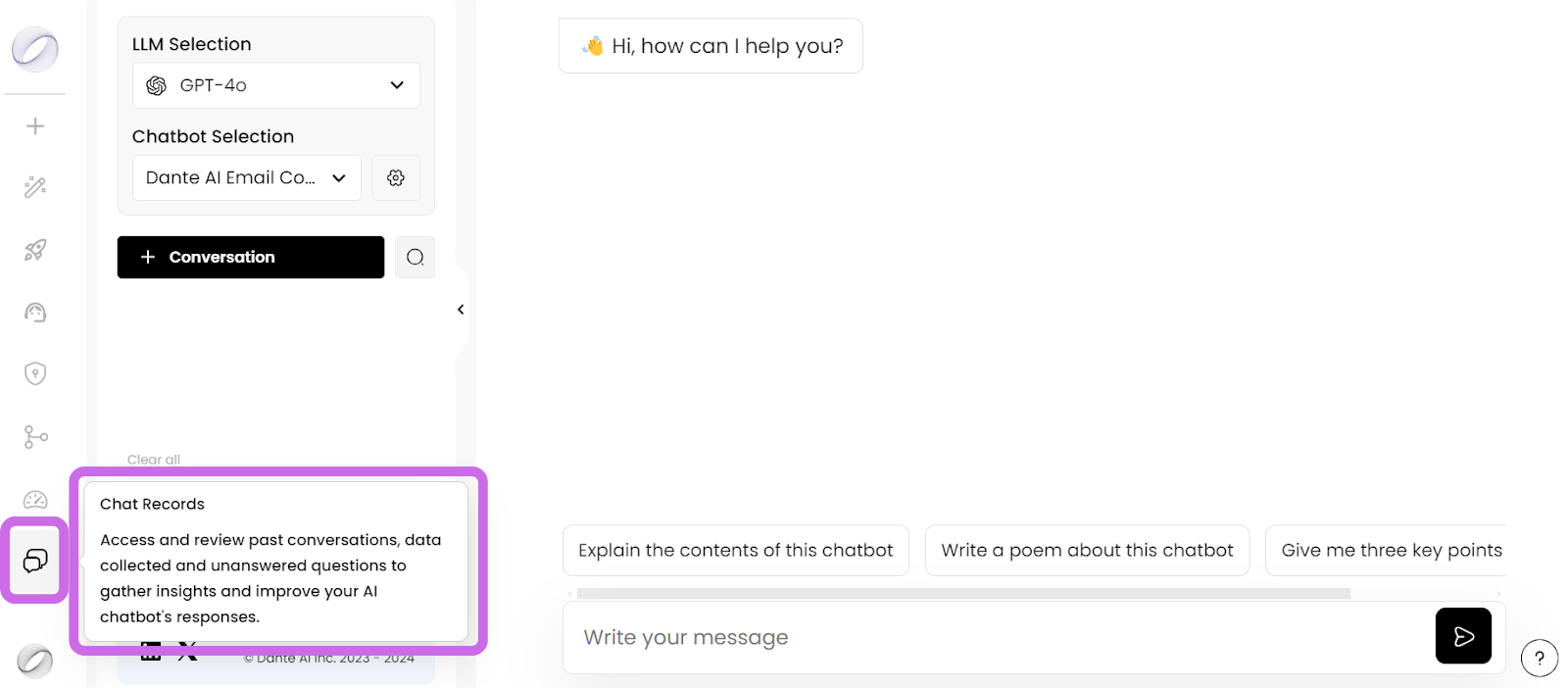
1. Open the Chat Records tab in your dashboard.
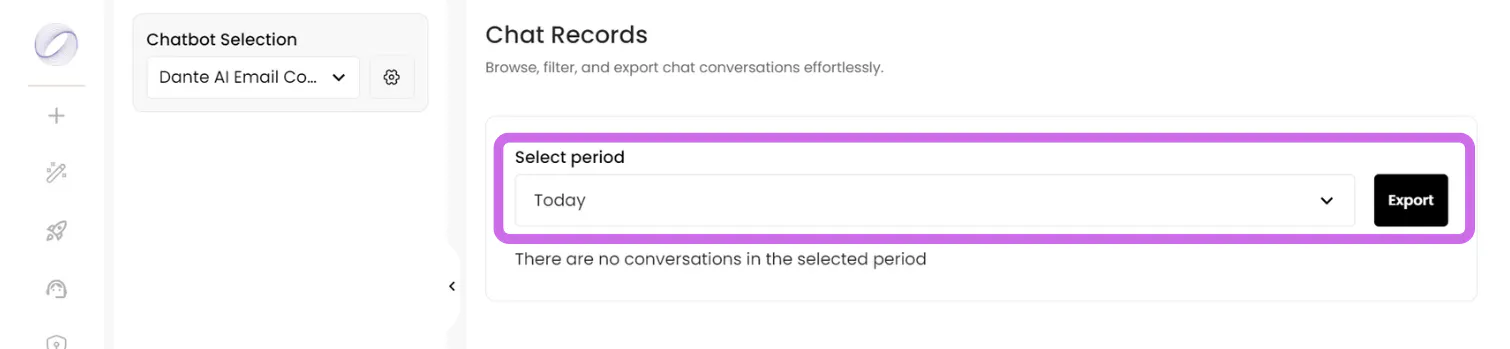
2. Choose the time period you want to review, then press Export.
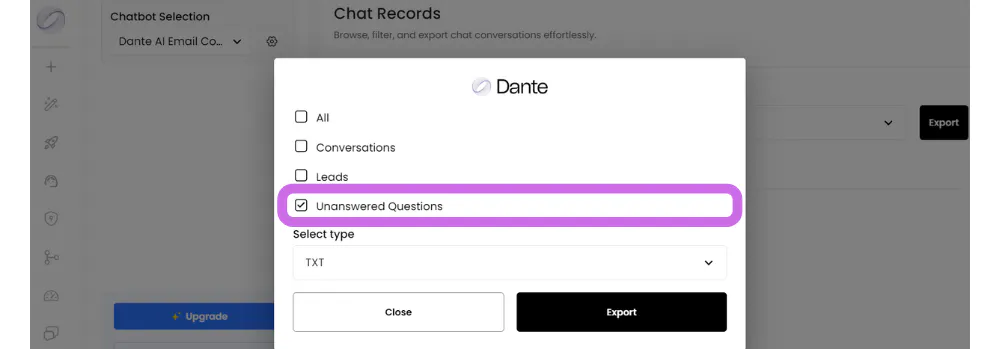
3. Select only Unanswered Questions, choose your file type (TXT or CSV), and press Export.
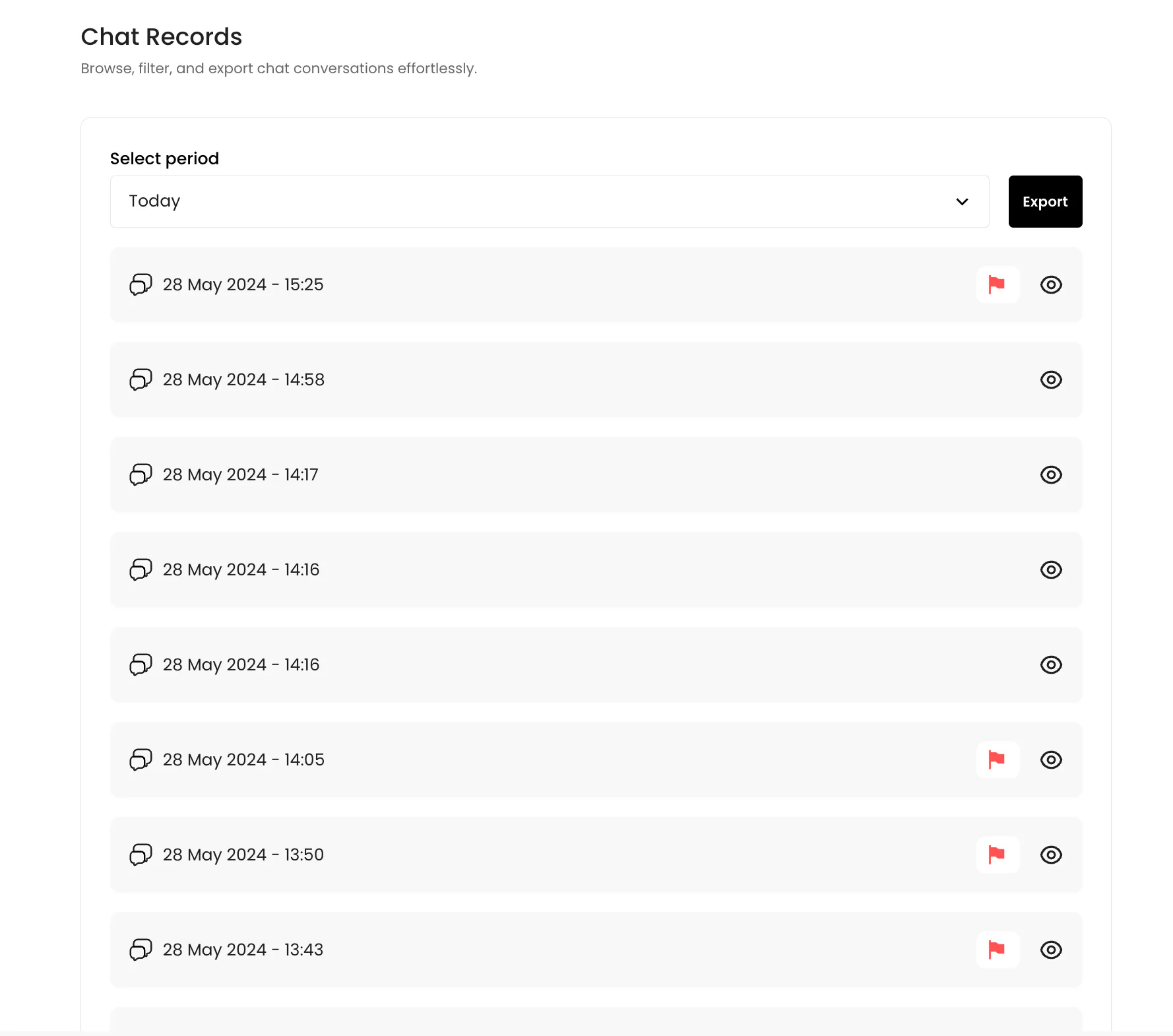
Conversations that contained an unanswered question are also flagged directly in the Chat Records section, so you can spot them at a glance:
Answering and re-uploading the questions
Once you have the list, turn it into knowledge your AI agent can use:
- Export the list of unanswered questions from your dashboard.
- Review each question yourself, or with subject matter experts, and draft accurate, complete answers.
- Document the answers in a single file.
- Re-upload the file into your AI chatbot.
- Retrain the AI agent so it absorbs the new information and can respond to those questions in future.
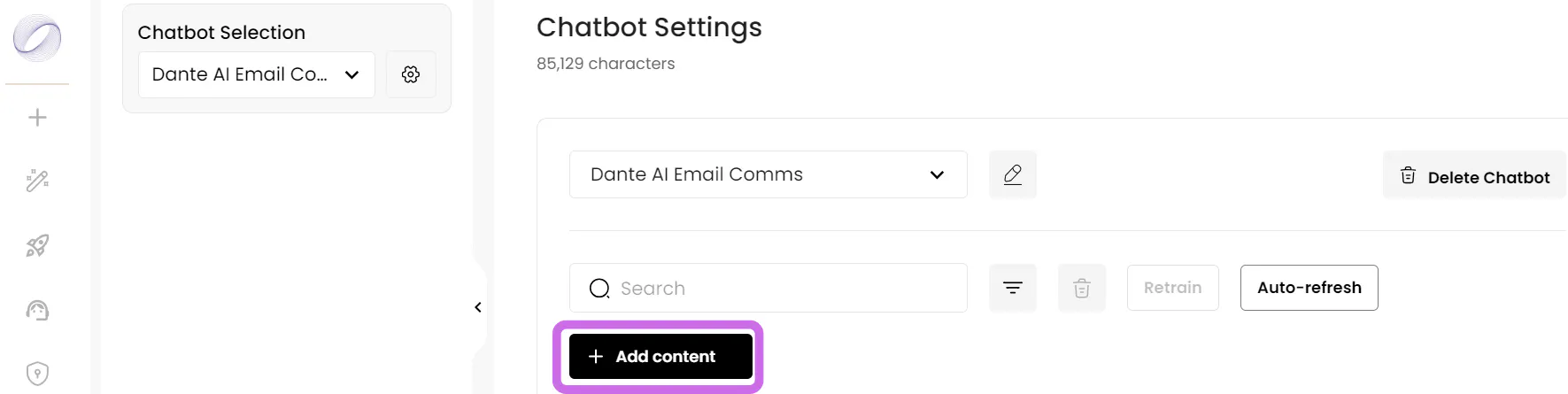
To re-upload your answers into Dante AI, two steps from your dashboard:
1. Open your Chatbot Selection settings.

2. Press + Add content and select the file containing your answers.
Preventing unanswered questions before they happen
Fixing gaps one at a time is good. Stopping them from forming is better. A few habits keep coverage strong:
- Analyze content gaps by reviewing unanswered questions on a regular cadence to see where your knowledge base falls short.
- Add detailed content such as FAQs and knowledge articles that answer those questions directly.
- Use structured data and clear keywords so the AI can find and retrieve the right information quickly.
Proactively filling these gaps steadily cuts the number of unanswered questions and raises satisfaction for every visitor.
Make it a habit, not a one-off
Handling unanswered questions is an ongoing loop, not a single task. Identify the gaps, answer and re-upload them, and keep enriching your knowledge base. Do this consistently and your AI chatbot stays accurate, helpful, and ready for whatever your customers ask next.
Open your dashboard now to start filling the gaps in your AI chatbot's knowledge and give your customers a smoother experience.
Further reading
Keep going with these guides from the Dante AI library: